You can adjust the sounds your helmet makes when its turn signals are active. On supported helmets, you can choose a different sound for each direction—or turn the turn-signal beeps off.
Available controls depend on your helmet model. This guide explains the Buzzer sound settings, which control turn-signal sounds rather than every sound your helmet makes.
Find your helmet’s sound settings
Turn on your helmet and make sure it is connected to the Lumos app.
Open Customize.
Open one of your three active scenes.
Select the helmet you want to adjust.
Scroll to Buzzer sound and tap it to expand the settings.
You’ll see separate controls for Left turn signal sound and Right turn signal sound.
Open Buzzer sound to adjust the left and right turn-signal sounds.
Choose a sound for each direction
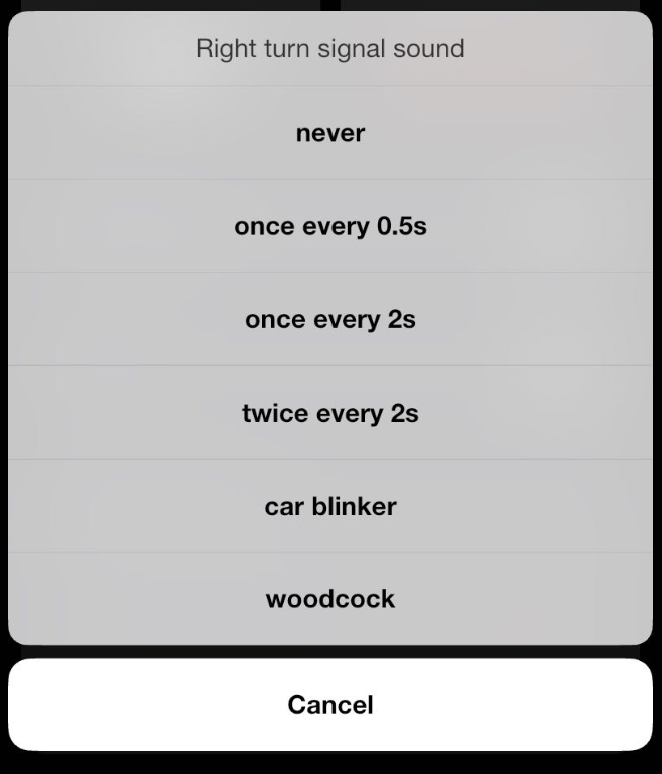
Tap Left turn signal sound or Right turn signal sound, then choose an option.
Depending on your helmet, the options may include:
Option
What it does
Never
Turns off the sound for that turn direction.
Once every 0.5s
Beeps once every half second while that turn signal is active.
Once every 2s
Beeps once every two seconds while that turn signal is active.
Twice every 2s
Beeps twice every two seconds while that turn signal is active.
Car blinker
Uses the Car blinker sound pattern.
Woodcock
Uses the Woodcock sound pattern.
With your helmet connected, selecting an option sends the setting to the helmet. Choose Cancel to close the selection menu without choosing a new option.
Left and right are set separately. If you want them to sound the same, select the same option for both.
Choose a sound for each turn direction.
Right Left
Turn off the turn-signal beeps
To silence both turn directions:
Set Left turn signal sound to Never.
Set Right turn signal sound to Never.
This turns off the turn-signal sounds, not the turn-signal lights.
Selecting Never for only one direction leaves the other direction’s sound setting unchanged. It also does not act as a master mute for power-on sounds, other alerts, or voice prompts.
Check the result on your helmet
While stationary, use the remote paired with your helmet to activate a left turn. Cancel it, then activate a right turn.
Listen to each direction to confirm that the settings match what you selected. If you chose Never, check that the turn-signal lights still respond without a turn-signal beep.
If you use more than one helmet, open each helmet’s sound settings to check its choices.
Test each turn direction to check the sound you selected.
Can’t find the setting, or hear no change?
Buzzer sound isn’t shown
Check that you opened the helmet’s settings, not a bike light or remote. Available sound controls vary by helmet model.
The selected sound hasn’t changed
Make sure the helmet is connected to the app, then select the option again. Test the same turn direction you changed—left and right have separate settings.
One direction is silent
Check that direction’s setting. It may be set to Never, even if the other direction has a sound selected.
The turn-signal lights don’t respond either
Check the remote’s pairing with your helmet. Changing a sound setting does not pair the remote.
If you still need help, contact Lumos Support with your helmet model, app and firmware versions, and a screenshot of the sound settings. A short video with the original audio can also help us understand the issue.

Comments
0 comments
Please sign in to leave a comment.