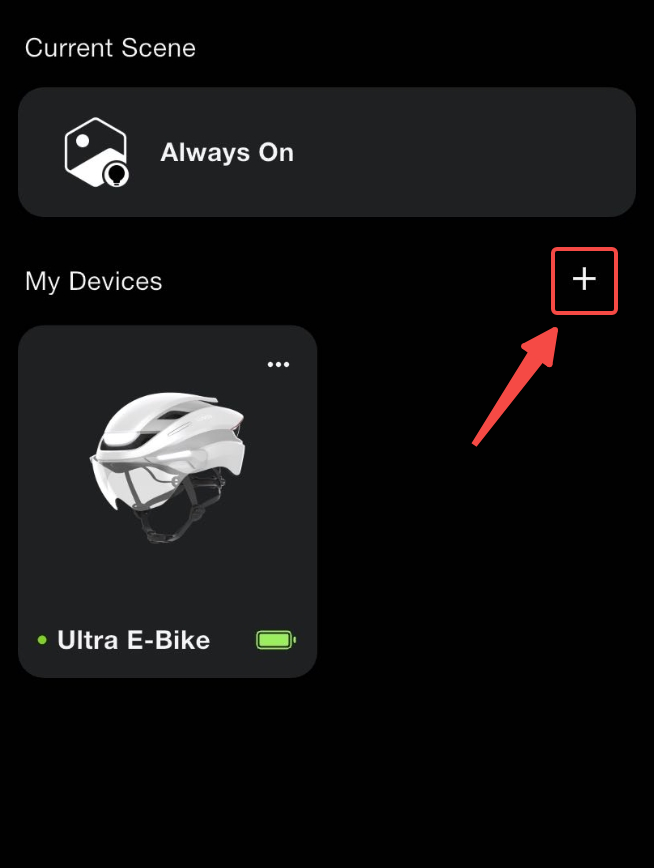
Open the Lumos app. On the Dashboard, tap + to add a device.
If you are already on the pairing screen during first-time setup, continue with the next step.
Start pairing from inside the Lumos app, rather than from your phone’s Bluetooth settings.
2. Put your helmet or light into pairing mode
Start with the device turned off.
Press and hold its power button. Keep holding as it turns on, until it shows its pairing animation.
Release the button and keep the device near your phone.
The pairing animation varies by model. Check the example shown on the app’s pairing screen if you are unsure what to look for.
A brief press may turn the device on for normal use without entering pairing mode. If that happens, turn it off and try again, holding the button longer.
3. Select your device
When your helmet or light appears in the list of nearby devices, tap Pair next to it.
Wait for pairing to finish before selecting another device. Keep the device powered on while completing the remaining setup prompts.
How to connect the Lumos Helmet to the app:
How to connect the Lumos lights to the app:
If the app asks to sync scene settings
When you add a device to an existing setup, the app may notice that its three saved scenes differ from the settings already in your app.
If you see a scene-sync prompt, choose whether to use the existing settings or keep the new device’s settings:
Choice
What happens
Sync
The app applies existing scene settings to the new device, replacing its three saved scene configurations.
Cancel
The new device keeps its own three saved scene configurations.
For a new helmet, the app uses settings from an already-paired helmet. For a new light, it uses settings from an already-paired light.
If you want to preserve lighting settings already saved on the device you are adding, choose Cancel. You can customize its scenes later.
Choose whether to use existing scene settings or keep this device’s settings.
4. Set the position of each bike light
After pairing a bike light, the app will ask where you use it on your bike.
Tap the position that matches where the light is mounted.
Check that the light appears in the selected position.
Tap Confirm.
For example, choose Front Left for a light mounted on the left side at the front of your bike. Left and right are from your perspective while riding.
Repeat this for each light you add. This step is for bike lights; helmets do not need a bike-light position.
Choose the position that matches where the light is mounted on your bike.
5. Add your remaining devices
Return to the pairing list and repeat the steps for each helmet or light you want to add.
Finish pairing and any position setup for one device before moving to the next.
When you have added everything you need, tap Continue. If the app points out that other nearby devices are still available, check whether any belong to your setup before continuing.
If a scene introduction appears, follow the on-screen guide, then tap Start using to open the Dashboard.
6. Check for firmware updates and confirm your setup
If the app shows a firmware update prompt, follow the instructions to update your devices. An updated app alone may not enable every feature; your devices may also need new firmware.

Comments
0 comments
Please sign in to leave a comment.