Your Lumos devices store three scenes at a time, but you can keep more scenes as drafts in the app.
Use drafts to save different lighting setups, then choose which three you want on your devices. Swapping in a new scene does not mean deleting an old favorite.
Active scenes and drafts: what’s the difference?
Open Customize to see both groups.
Scene type
Where it is stored
How you use it
Active scene
On your devices, in one of three scene slots
Switch to it using a helmet or light’s physical power button.
Draft scene
In the app on your phone
Edit and keep it for later, then move it into an active slot when you want to use it.
Editing a draft does not change your devices’ current lighting. This also applies when you use Apply to copy settings between devices within that draft.
Keep three scenes on your devices and save additional setups as drafts in the app.
Create a draft
Open Customize.
Tap + next to Draft scenes.
Enter a name, such as My Commute, and tap Done.
Choose Start from scratch, or select an existing scene as your starting point.
Tap Done, then configure the devices within the new draft.
Starting from an existing scene gives you a separate draft to work on without changing the original.
Before activating a draft, check the lighting settings for each device—especially if you started from scratch.
Move a draft into the active group, check your three scenes, then tap Done to save them to your devices.
Change the order of your active scenes
The order in Arrange Scenes, from top to bottom, is the order your devices use when cycling through scenes.
Open Arrange Scenes.
Drag the active scenes into your preferred order.
Tap Done and wait for saving to finish.
With your devices powered on, press the power button once on a helmet or light to move to the next scene. After the third scene, the cycle returns to the first.
The app displays the current scene on Dashboard. It does not switch scenes for you.
Check that the arrangement reached your devices
After saving:
Confirm that your chosen scenes appear in the active group in Customize.
Use a helmet or light’s physical power button to cycle through all three scenes.
Check that each connected device uses the lighting settings you expected.
A device that was offline cannot receive the new arrangement immediately. Turn it on, reconnect it to the app, and follow any synchronization prompt before checking its scenes.
If the app reports that some devices did not update, do not assume the whole setup has received the new arrangement. Check the affected devices and follow the on-screen guidance.
Renaming a scene changes its label, not its lighting settings.
Delete a draft
Deleting a draft is permanent. It cannot be recovered.
You do not need to delete a scene just to make room on your devices—keep it as a draft instead.
If you are sure you no longer want a draft:
Open it from Draft scenes.
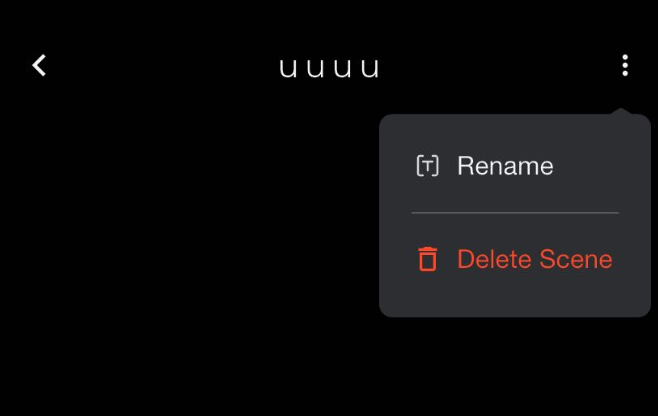
Tap the three-dot menu.
Choose Delete Scene.
Read the confirmation and tap Delete.
Deleting a draft removes that draft from the app. It does not change the three active scenes currently stored on your devices.
Active scenes cannot be deleted while they occupy a device scene slot. To remove one, first replace it with another scene through Arrange Scenes. Once the old scene is in the draft list, you can keep it or delete it.
Delete Draft Scene
Scene ListActive Scene — Cannot Delete
Rename scenes from their menu. Only drafts can be deleted, and deletion is permanent.
Why can’t I see Arrange Scenes?
Create at least one draft first. Arrange Scenes appears when you have a draft available.
You can use an existing scene as the starting point for that draft if you do not want to build one from scratch.
Will my drafts move to a new phone?
No. Draft scenes and your custom flash-pattern library are stored locally in the app on your current phone.
There is no export, import, or migration option. You will need to recreate these items on another phone, and deleted app data cannot be restored.
Settings already stored on your devices can be read back after pairing with another phone, but this does not restore your full draft or custom-pattern library.

Comments
0 comments
Please sign in to leave a comment.