You can customize a scene around the lighting you want—for example, steady front lights and flashing rear lights.
Start by setting up one device. Then use Apply to share supported changes with the other devices in that scene, without repeating the same adjustments on each one.
Before you begin
Pair your helmets and lights with the Lumos app.
Complete any available device firmware updates.
Turn on and connect the devices you want to configure.
Check that your bike lights have the correct positions assigned in the app. Their positions help determine which lighting settings they receive.
Inside the scene, tap the helmet or light you want to configure.
For example, on a helmet with front and rear lighting controls:
Set the front light to steady.
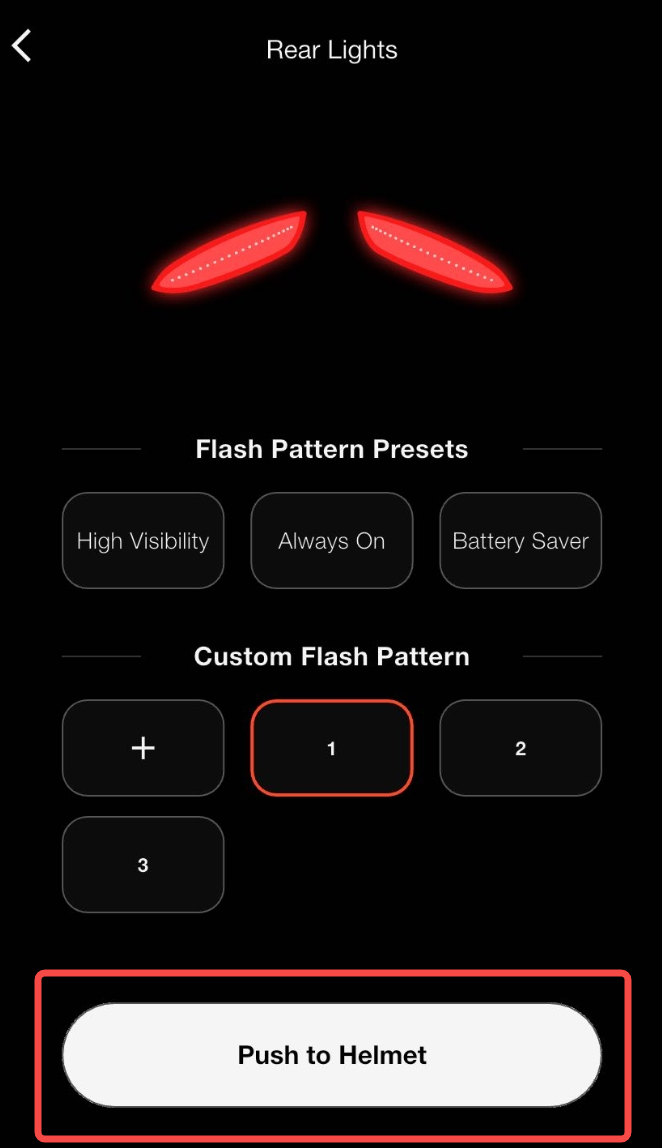
Choose a flash pattern for the rear light.
Adjust the brightness.
The available controls depend on the device. Some models also offer color choices or special animations.
If you are editing an active scene
Brightness and Boost changes are sent to the selected device immediately.
When changing a flash pattern, color, or animation, tap Push to device on that setting’s page to send the change to the device. Selecting or previewing a pattern is not the same as applying it.
If you leave with an unapplied change, follow the prompt to apply it or discard it.
If you are editing a draft
Your changes stay in the app. There is no Push to device step, and your physical lights will not change yet.
In an active scene, tap Push to device to apply a selected lighting pattern.
Draft changes stay in the app.
When you finish configuring the device, tap the back arrow in the upper-left corner of its settings page to return to the scene.
The app asks whether you want to apply your changes to the other devices.
Choose Apply to share supported changes with the other devices in this scene.
Choose Cancel to keep the changes only for the device you just edited.
Canceling this sharing step does not undo the changes you have already saved or applied to that device.
Apply shares the changes you just made—not every setting on the device. For example, if you only changed brightness, it does not replace the other devices’ flash patterns.
It also affects only the scene you are editing, not your other scenes.
For an Active Scene, reflect the actual device state changes in real time.
For a Draft Scene, only display in-app configuration changes; device effects will take effect only after the draft is activated.
Apply supported changes to other devices in the same scene, or keep them only on the device you edited.
What does Apply copy?
The result depends on what you changed and which features the receiving devices support.
What you change
How it applies to other devices
A helmet’s front-light pattern
Applies to other helmets’ front lights and bike lights assigned to front positions.
A helmet’s rear-light pattern
Applies to other helmets’ rear lights and bike lights assigned to rear positions.
A bike light’s pattern
Applies to other bike lights and to supported front and rear lights on helmets.
Brightness or Boost
Applies the same setting to other devices that support it.
Color
Stays specific to the device you edited; it is not copied.
Special animations
Stay specific to the device you edited; they are not copied, even between devices of the same model.
For example, if you change a helmet to steady in front and flashing in back, applying those changes can give your front-position bike lights steady lighting and your rear-position bike lights the rear flash pattern.
Apply does not include your remote.
4. Check or activate your scene
For an active scene
Allow the changes to finish applying, then check the connected devices.
You can open another device within the same scene to check its settings. If you want that device to behave differently, edit it individually and choose Cancel when asked to apply its changes elsewhere.
An offline device cannot receive changes immediately. Reconnect it and complete any synchronization prompt before checking its settings.
For a draft scene
Open another device within the draft to check the copied settings. Your physical lights will still be using their current active scene.
When the draft is ready:
Return to Customize and open Arrange Scenes.
Move the draft into one of the three active scene positions.
Tap Done and wait for the changes to finish syncing.
You are editing a draft: changes stay in the app until you make the scene active.
You selected a pattern but did not apply it: in an active scene, tap Push to device.
You declined Apply: only the device you edited keeps the changes.
A device was offline: reconnect it and check whether its settings need to sync.
The setting is not shared: colors and special animations are not copied, and other settings depend on the receiving device’s capabilities and position.

Comments
0 comments
Please sign in to leave a comment.