
Team Sync lets compatible Lumos devices belonging to different riders flash together.
Choose one rider’s helmet or light as the starting point, then use its current flash pattern to synchronize nearby devices that have Team Sync enabled.
Each rider keeps their devices paired with their own phone. You do not need to pair everyone’s devices with one person’s app.
Is this different from syncing my own devices?
Yes.
Your own helmets and lights can switch scenes and turn on or off together without Team Sync. Team Sync allows a device to accept a flash-pattern synchronization from another rider’s device.
If you only want to control your own setup, see Control your devices by riding scenes.
Check compatibility before you begin
Team Sync’s supported model range has not changed with this update. Kickstart Lite and Street do not support Team Sync.
Participating devices must also use the same connection system:
- Devices using the original 2.4G system can sync with other compatible 2.4G devices.
- Devices using the new BLE system can sync with other compatible BLE devices.
- 2.4G and BLE devices cannot sync with one another.
Each rider should update the app and install the firmware updates available for their devices. Keep your own devices paired with your own phone, turn them on, and bring the participating devices close together.
For update and compatibility information, see Which new features can I use with my devices?
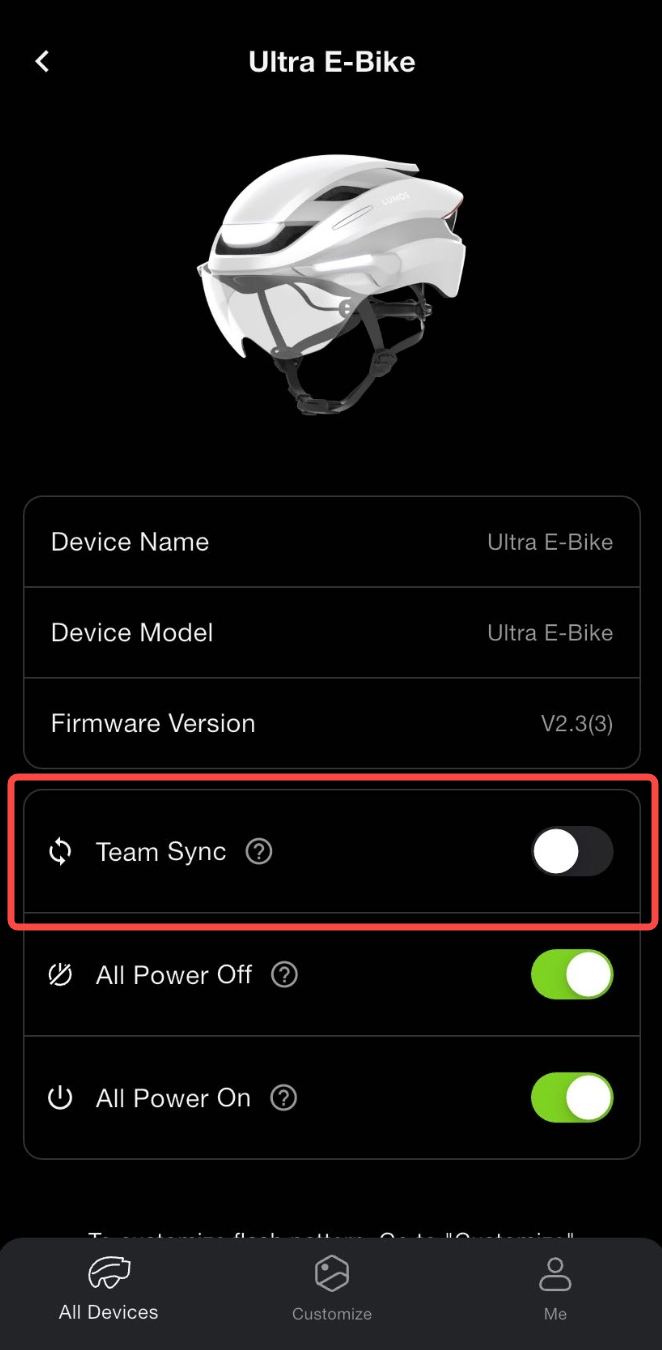
Enable Team Sync
On each rider’s phone:
- Open the Lumos app and wait for the devices to connect.
- On Dashboard, tap a connected helmet or light.
- Turn on Team Sync.
- Repeat for each device you want to participate.
Team Sync is a device-level setting. Check each participating helmet or light rather than assuming that enabling it on one device enables it on all the others.
Turning on the switch allows the device to receive a synchronization request. It does not immediately start a group synchronization.
Enable Team Sync on each device you want to participate.
How to Enable Team Sync:https://youtube.com/shorts/iv86NdUP7jc
Sync your group’s lights
- Choose a helmet or light that is already displaying the flash pattern you want the group to follow.
- With the participating devices powered on and nearby, press that device’s physical power button twice in quick succession.
- Check that the other compatible devices with Team Sync enabled adopt the supported flash pattern and flash in time with it.
Use the power button on the helmet or light—not the turn buttons on a remote.
A single press switches scenes within your own setup. A double press sends the synchronization request using the device’s current pattern.
Double-press one device’s power button to share its flash pattern with nearby Team Sync devices.
What does Team Sync change?
Team Sync temporarily matches the source device’s flash pattern and timing on compatible receiving devices. Your own saved scene settings are preserved.
It does not import another rider’s scene library or pair your devices with their phone. You do not need matching scene names to synchronize a supported flash pattern.
Team Sync is also separate from All power on and All power off, which control how devices in your own setup follow one another’s power actions.
Return to your own scenes
Press the physical power button once on your helmet or light.
The device moves to the next scene in your own scene sequence and uses your saved settings for that scene.
For example, if your device was on Always On before receiving another rider’s Team Sync pattern, one press takes it to Night Ride, using your own Night Ride settings—assuming you have kept the default scene order.
This returns you to your own scenes, but it does not turn Team Sync off. Your device can still accept another rider’s synchronization request while the setting remains enabled.
Stop accepting other riders’ sync requests
- Connect your device to your own Lumos app.
- Open its device details from Dashboard.
- Turn Team Sync off.
- Repeat for any other devices you want to exclude.
Turning Team Sync off only blocks future synchronization requests. It does not immediately change the light pattern already playing.
To return to your own settings as well, press the device’s power button once to move to your next saved scene.
Disabling Team Sync does not disable scene synchronization between devices paired with your own app.
Single press: next personal scene
Team Sync off: blocks new sync requests。
Press once to return to your next saved scene. Turn Team Sync off to block future sync requests.
What if a device does not sync?
If the devices do not sync after the first attempt, double-press the physical power button on the sending device again to retry the synchronization. Signal interference or other temporary issues can sometimes cause synchronization to fail.
If it still does not work, check the receiving device:
- Is Team Sync enabled on that specific device?
- Is it powered on and sufficiently charged?
- Is it close to the device sending the synchronization?
- Do both devices use the same connection system?
- Have the available firmware updates been installed?
All supported devices support Team Sync.
Then check the sending device:
- Make sure it is displaying the pattern you want to share.
- Double-press its physical power button, rather than pressing once or using the remote.
If necessary, move the devices closer together and try again while stationary.
For additional help, see My devices aren’t syncing or my scene changes aren’t showing.
If the issue continues, contact Lumos Support with the device models, firmware versions, and a short video showing the button presses and how each device responds.
Comments
0 comments
Please sign in to leave a comment.